
Step 1: Get these tabs open before the mapping exercise
- Microsoft Excel: Open a new spreadsheet
- Web browser: You will be referring to CoinGecko’s API documentation page frequently, so have this page open too: CoinGecko API Documentation.
Step 2: Pulling list of coins from CoinGecko’s API
- On Microsoft Excel, click on the “Data Tab”. Select “From Web” in the respective menu in the tab.
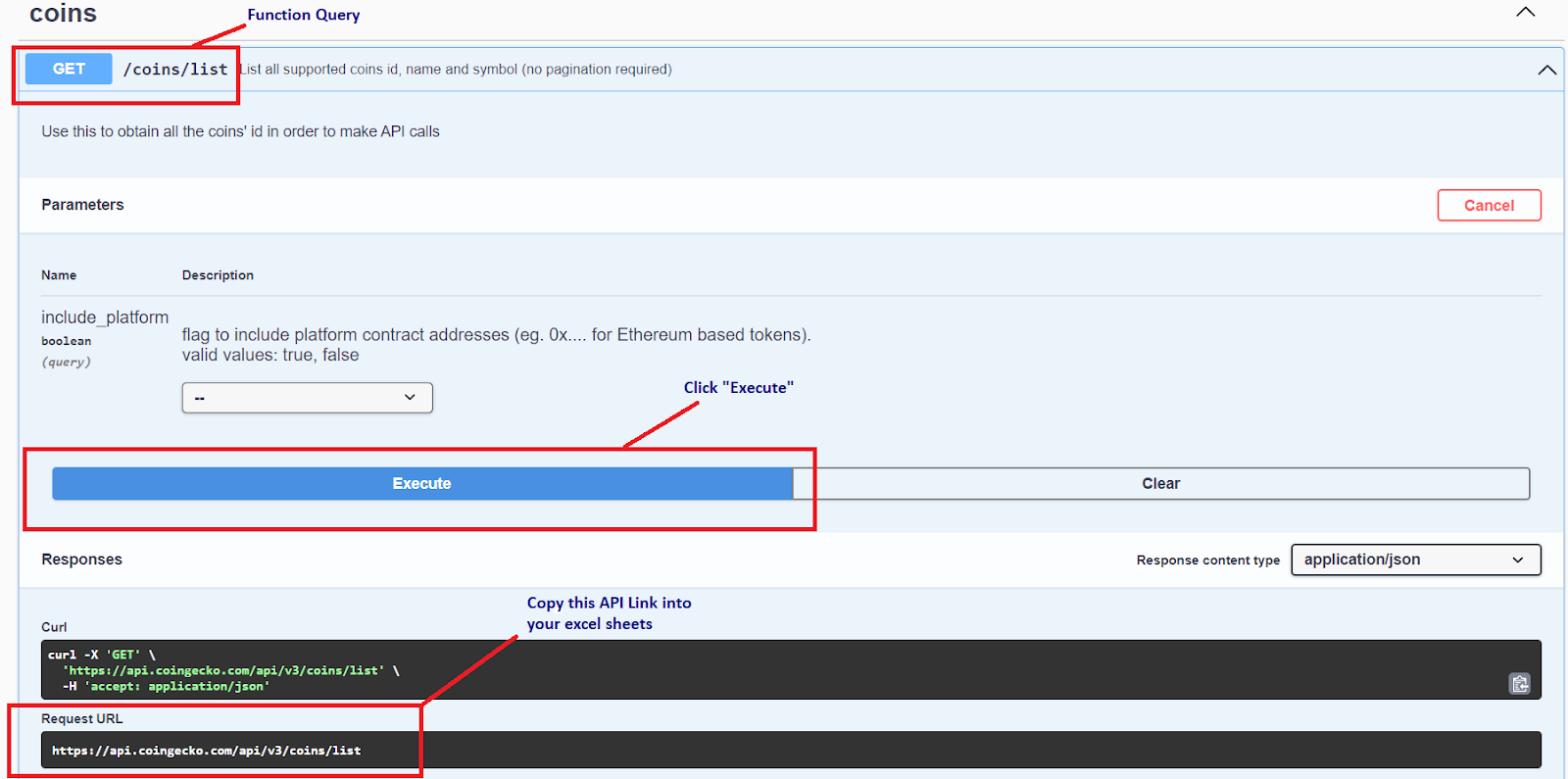
- You will need to input an API query from CoinGecko API Documentation. To pull the coin list, we will use the “GET /coins/list” endpoint. It returns https://api.coingecko.com/api/v3/coins/list which you can copy into Microsoft Excel.

Step 3: Convert the data into Table format on Power Query Tab
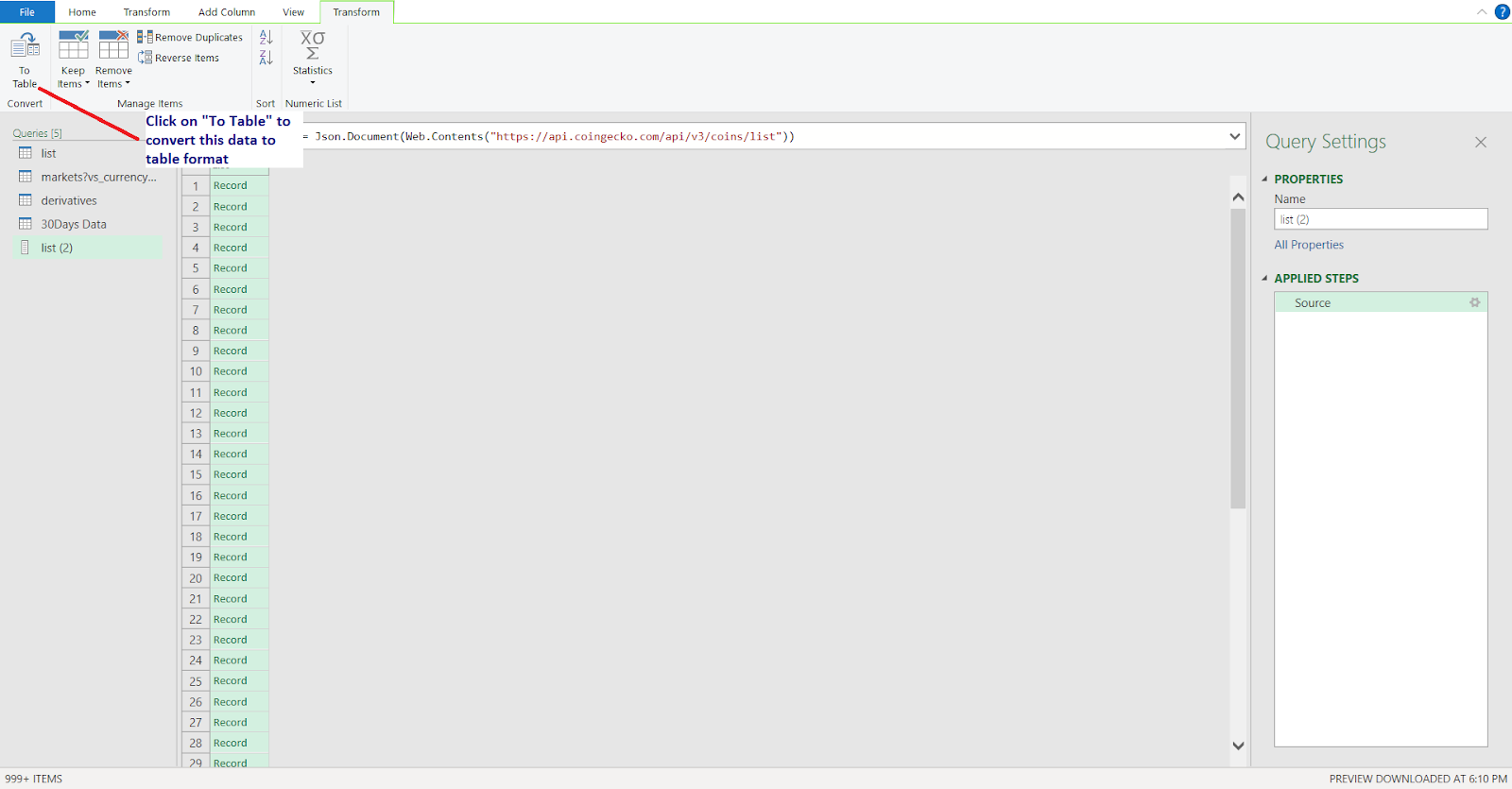
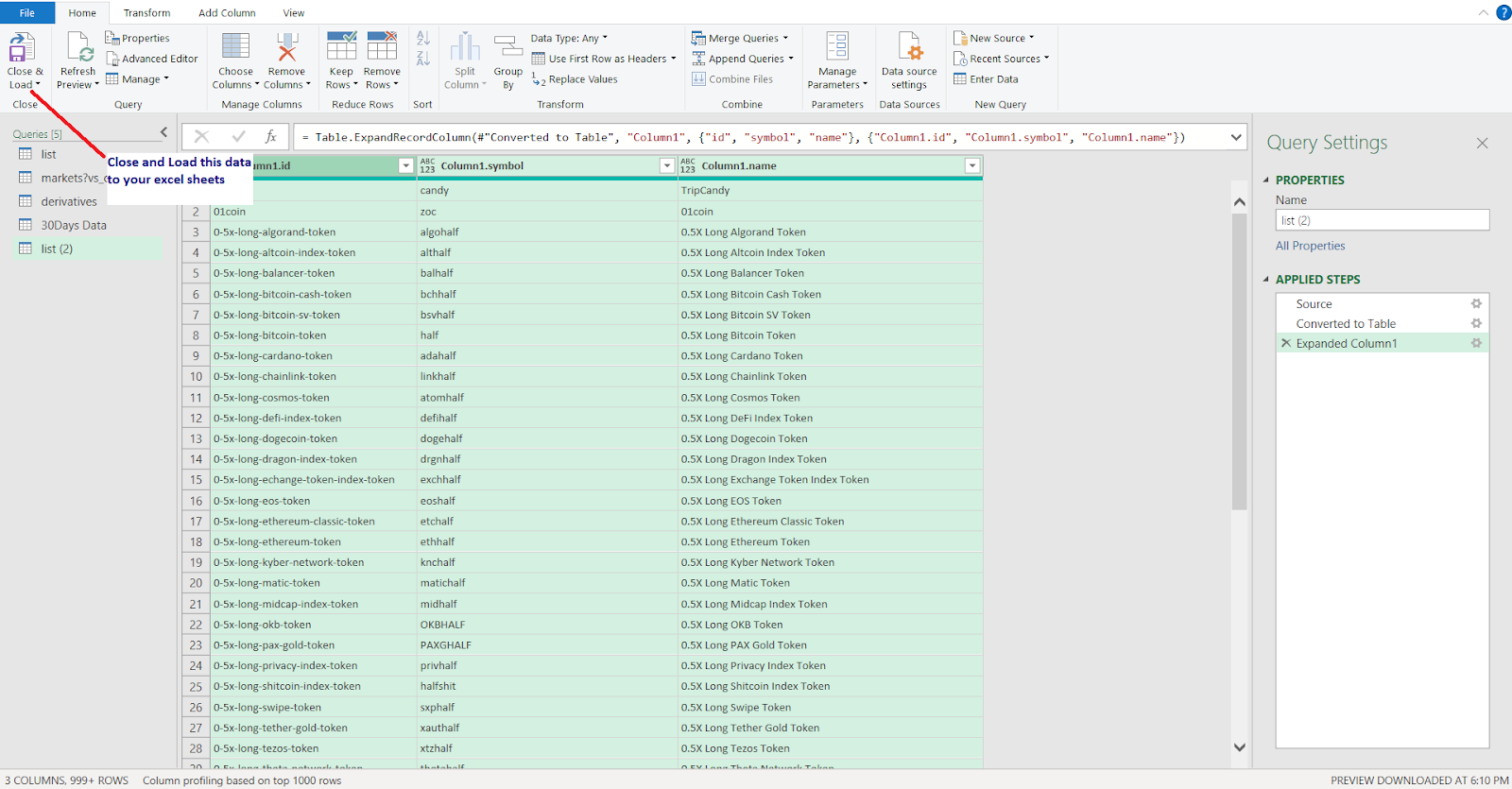
- Next, some raw data that says “Record” would be loaded in a column onto a Power Query tab. We’ll convert it to a table format before using it by clicking on the “To Table” icon.
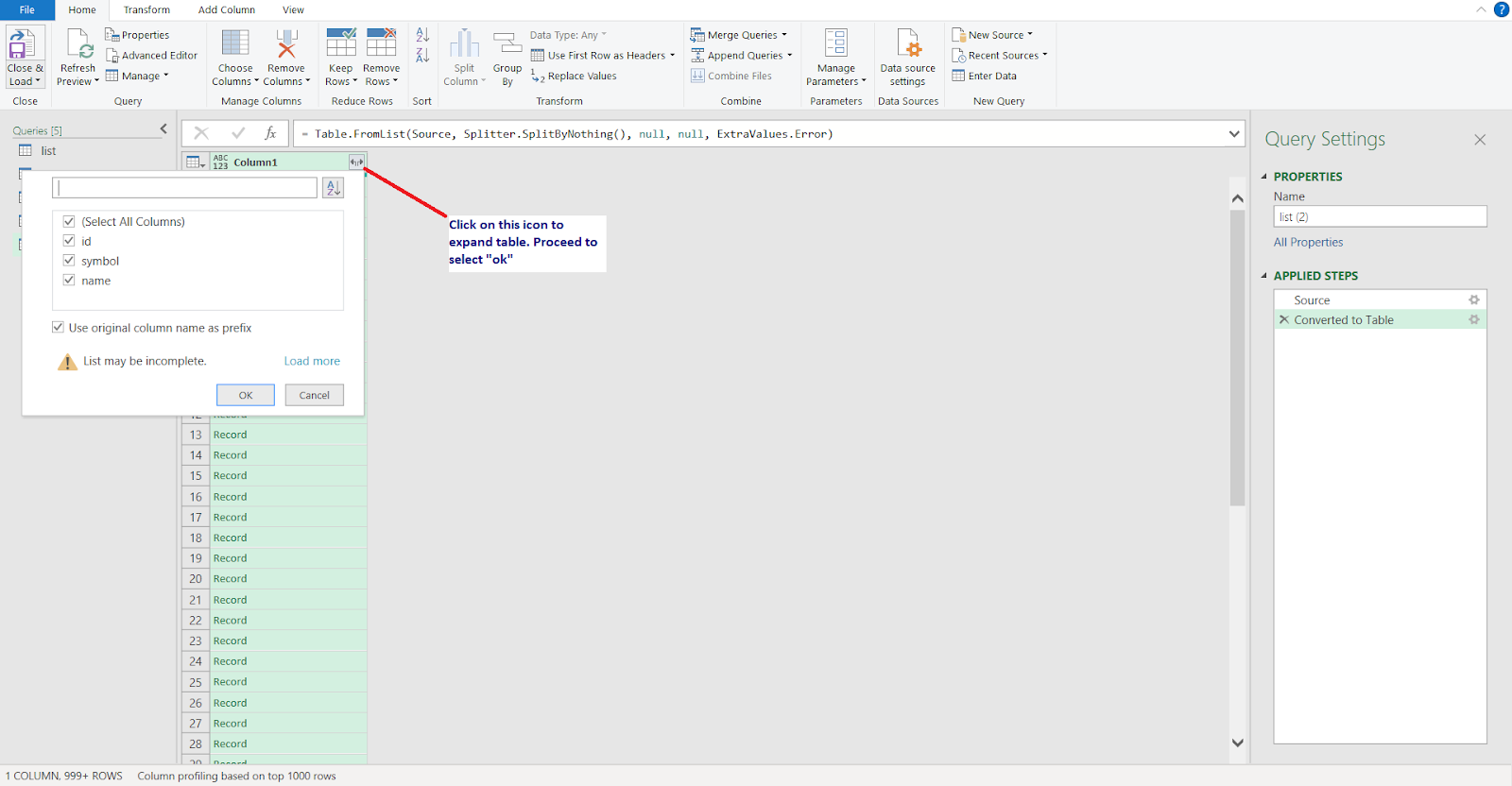
- You would need to expand the columns as well in order for the data to be displayed nicely.
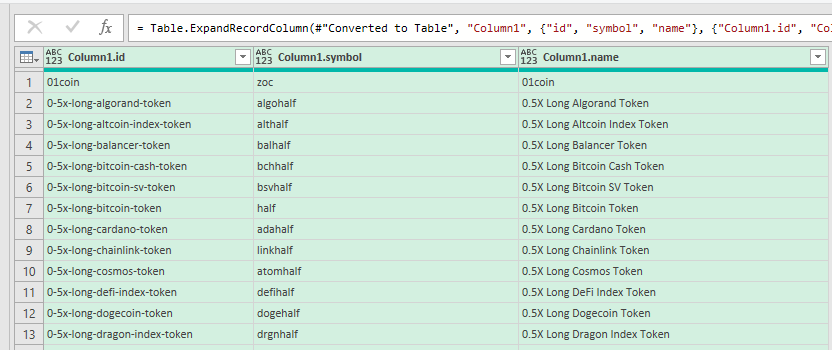
- Once done you should expect to see a table with 3 columns, like so:
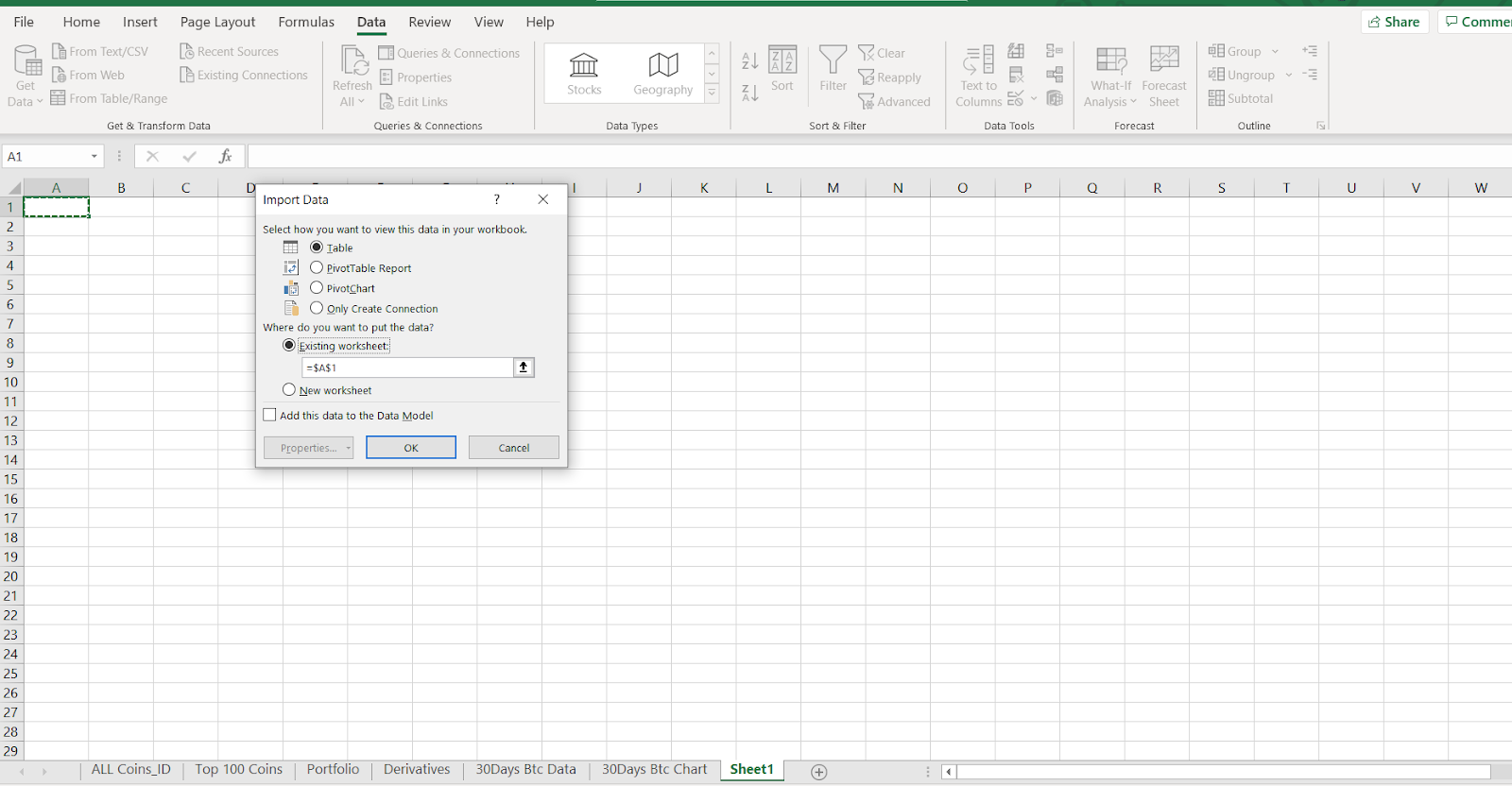
Step 4: Close and Load your data to the excel spreadsheet
- The data should load in the spreadsheet selected.
- Select the filter button to sort data in accordance with your preference
Step 5: Click on the Refresh All button to call data from our API to fetch live data
- The data will load to live prices once you select the “refresh all” button on the Data tab.

Click on the “Refresh All” button to fetch live data
And that is all there is to pulling data through API – You can easily replicate this across other API endpoints as well. Do check out the CoinGecko API Documentation page, and if you run into any issues – our FAQ section is available for reference.
We hope you find this guide useful! Here is a sample Excel document (.xlsx) that you may download and modify accordingly.
Closing thoughts
Lastly, this guide uses Power Query, which is only available for Windows Microsoft Excel users. For Mac users, your alternatives are to use the Cryptosheets plugin for Microsoft Excel or Google Sheets where we’ve also prepared a guide here!
That said, this is probably more suitable for more advanced work/analysis uses. If you want something quick, easy and syncs across web/mobile app – check out CoinGecko’s Portfolio which works right out of the box complete with charts, transactions tracking, Profit & Loss and more!

Extra: Exploring the /coins/markets endpoint for price, market cap, volume and more
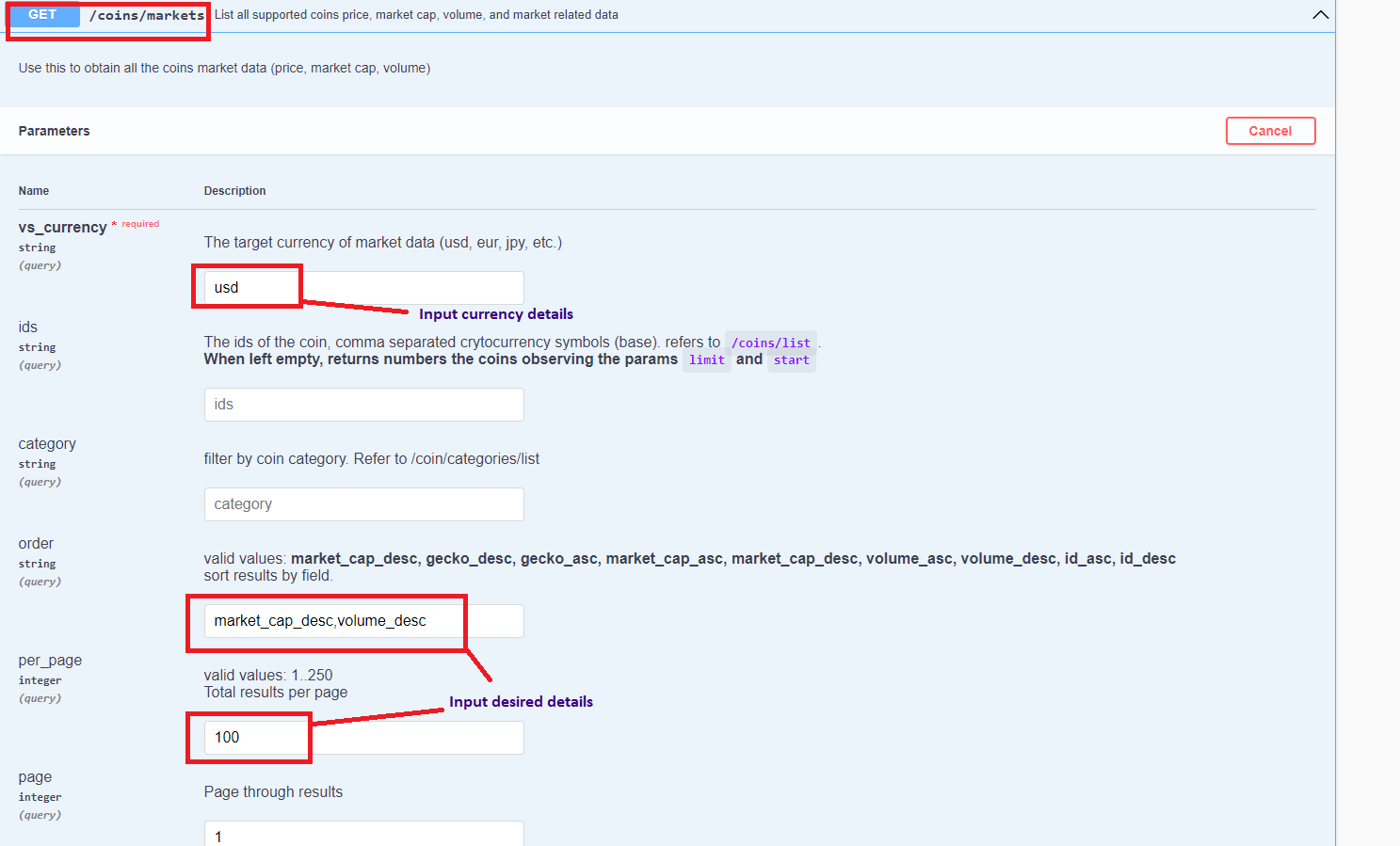
- Select GET /coins/markets as an example this time.
- Enter the prefixes into the empty spaces for the desired outcome. You may follow the description of these tiles to get an idea of what to input as your data..
- Hit the execute button once completed to generate the Request URL
- (example API call to get a list of 100 coins) – https://api.coingecko.com/api/v3/coins/markets?vs_currency=usd&order=market_cap_desc%2Cvolume_desc&per_page=100&page=1&sparkline=false&price_change_percentage=1h%2C24h%2C7d
- Once the API url is obtained, proceed to repeat steps 2-5 from the guide above into your Excel sheets.
Source: https://blog.coingecko.com/import-coingecko-cryptocurrency-data-into-microsoft-excel/
